How to Open FiveM Ports in Windows Defender Firewall (VPS Guide)
This guide will show you how to open the default FiveM and txAdmin ports in Windows Defender Firewall with Advanced Security.
Default Ports
- 30120 – FiveM Server
- 40120 – txAdmin
Step 1 – Open Windows Defender Firewall with Advanced Security
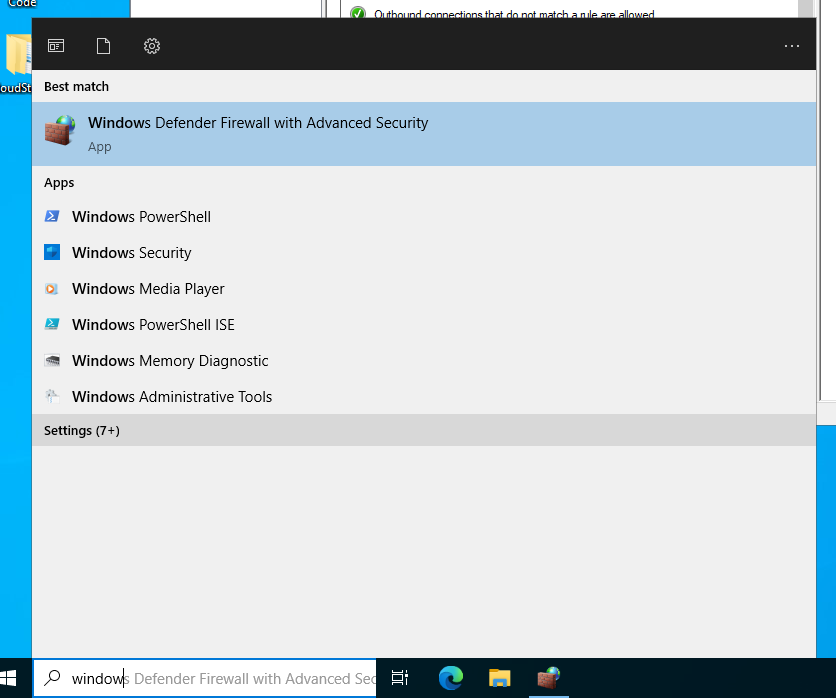
On your VPS, open the Start Menu and search for Windows Defender Firewall with Advanced Security, then open it.
Step 2 – Navigate to Inbound Rules
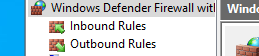
On the left side of the window, click Inbound Rules.
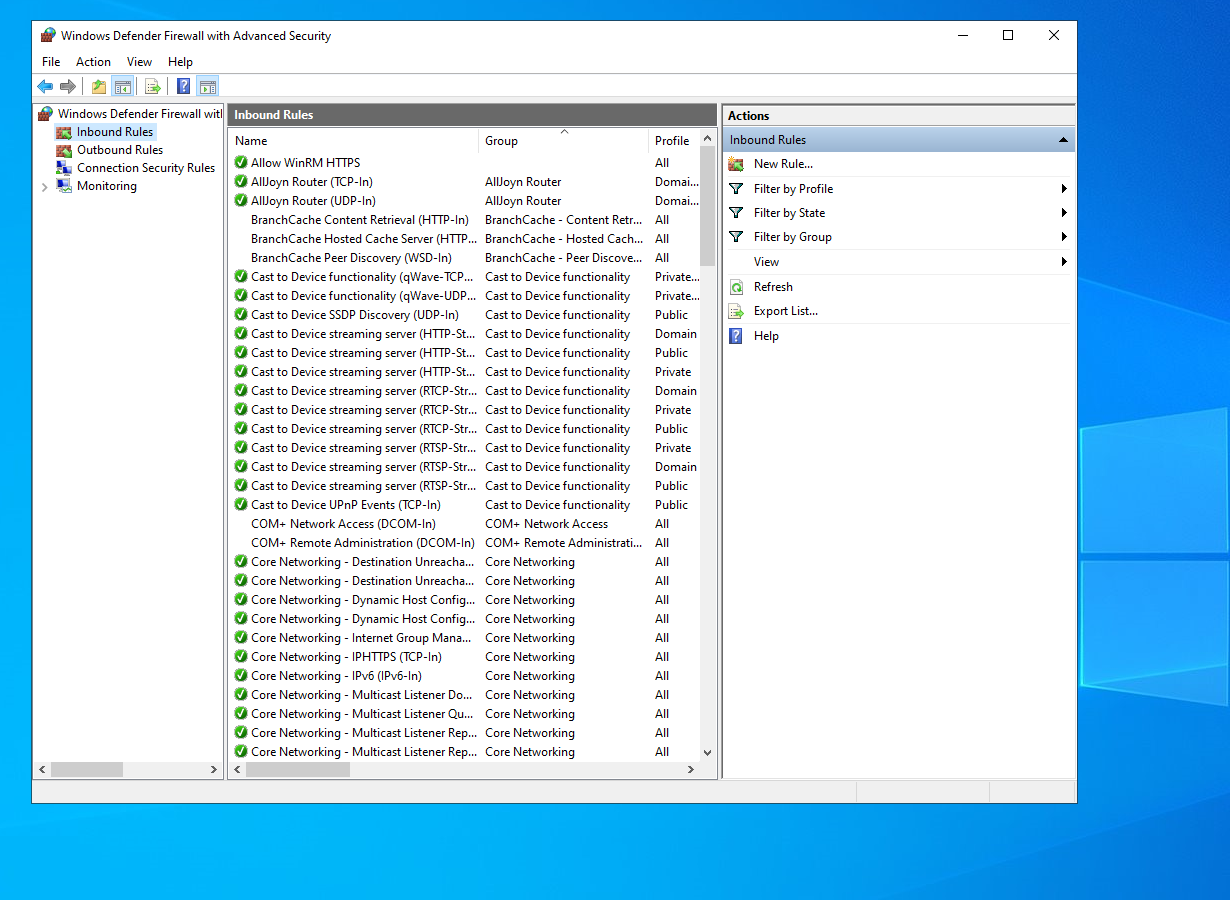
Once selected, click New Rule... on the right-hand side under the Actions panel.
Step 3 – Select Port Rule
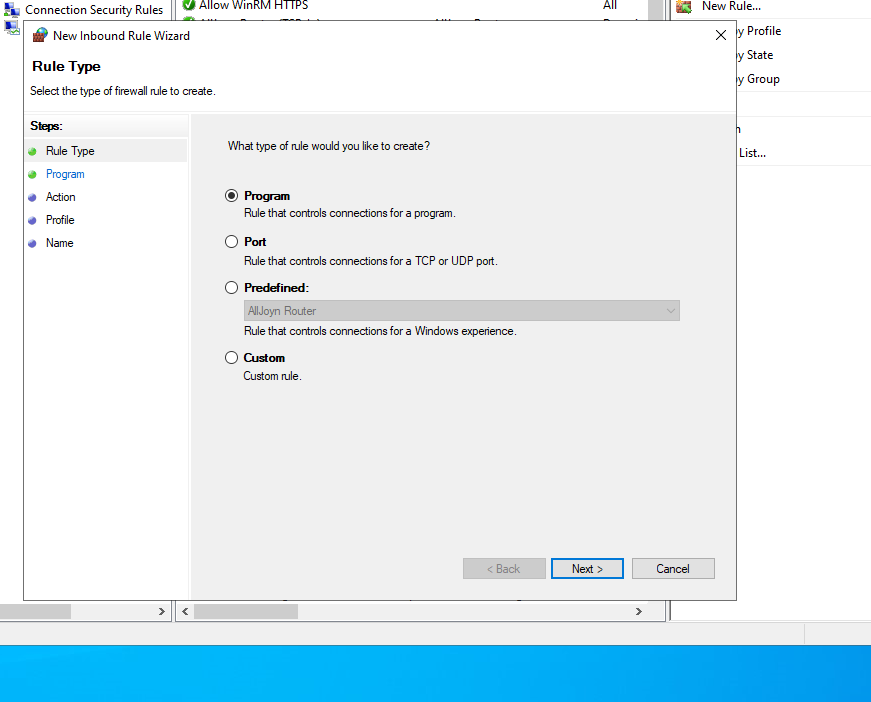
When the New Inbound Rule Wizard opens:
- Select Port
- Click Next
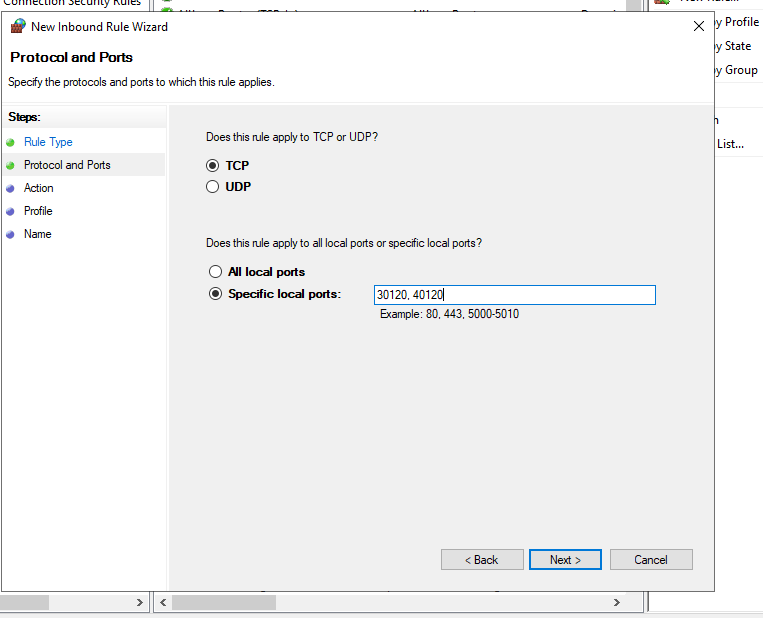
Step 4 – Choose TCP
- Select TCP
- Choose Specific local ports
- Enter:
30120,40120- Click Next
Step 5 – Allow the Connection
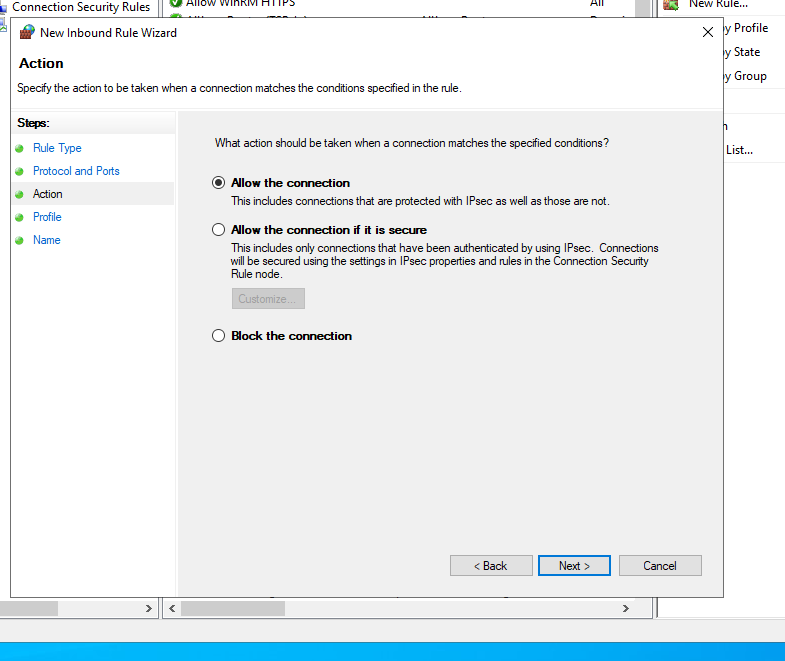
Select:
✅ Allow the connection
Click Next.
Step 6 – Select Firewall Profiles
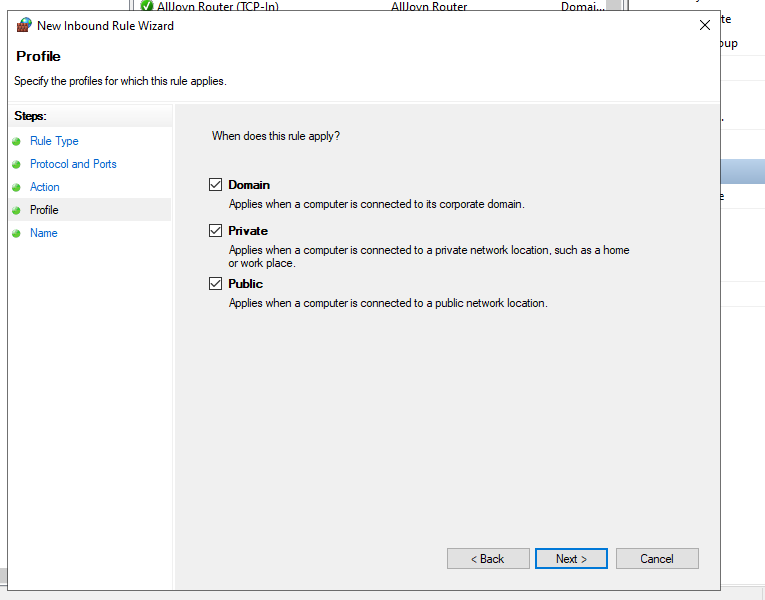
Leave all three boxes checked:
- ✅ Domain
- ✅ Private
- ✅ Public
Click Next.
Step 7 – Name the Rule
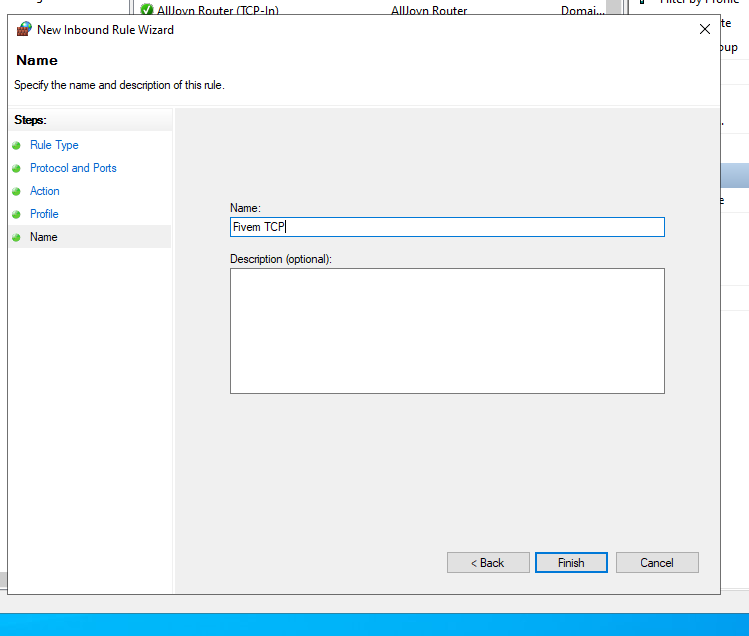
Give your rule a name such as:
FiveM TCP
Then click Finish.
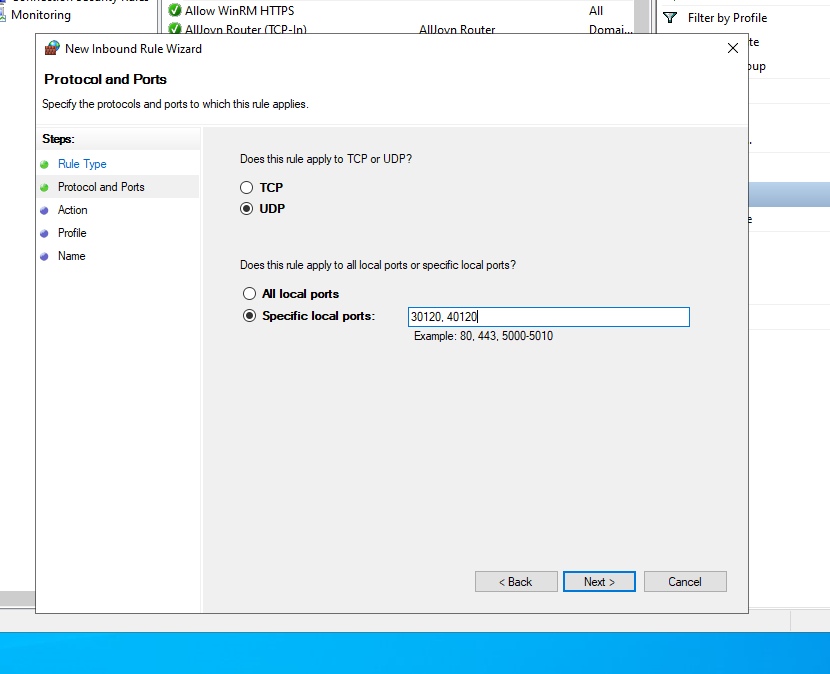
Step 8 – Create the UDP Rule
Repeat Steps 2–7, but this time select:
UDP
instead of TCP.
Use the same ports:
30120,40120Name it:
FiveM UDP
Step 9 – Create Outbound Rules
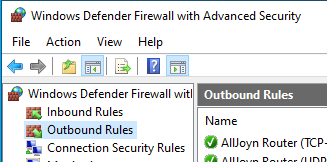
Now click Outbound Rules in the left panel.
Repeat the exact same process:
- Create a TCP rule
- Create a UDP rule
Both should use:
30120,40120

Finished!
You should now have four firewall rules:
Your Windows Defender Firewall is now configured to allow the default FiveM and txAdmin ports.
Need Help?
If you run into any issues during setup, our support team is here to help.
For assistance, you can:
- Join our Discord support server: https://discord.gg/JwnumEWEq6
- Or log in to the Client Area - CloudStrikeHosting and open a support ticket.
Whether you have questions about your VPS, need help troubleshooting, or need assistance with your account, we're happy to help get you up and running as quickly as possible.